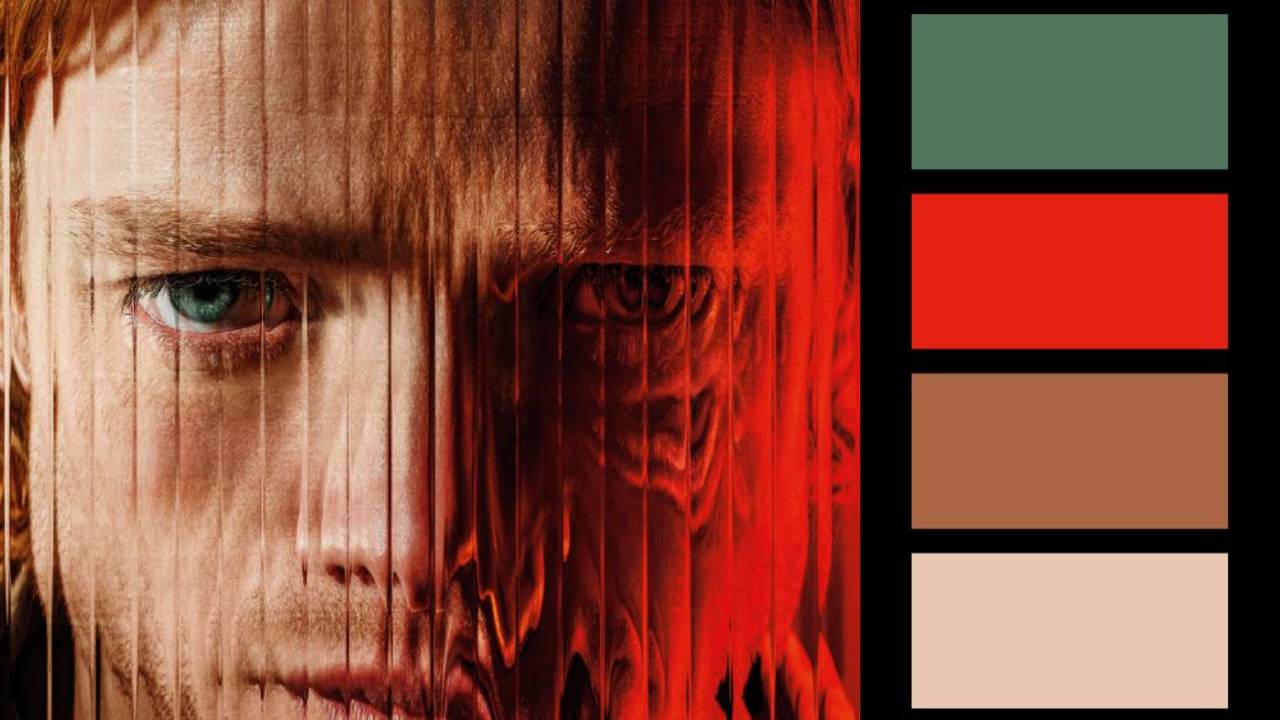
Why I Use Curves on Almost Every Composites
Curves is one of the most powerful tools in Photoshop—and one of the most misunderstood. In this in-depth lesson, I’ll show you how I use Curves on almost every composite to control contrast, color, brightness, depth, and realism.
We’ll go beyond the basic S-curve and explore how Curves can be used to match elements, fix lighting issues, create atmosphere, and make composites feel more believable. Whether you're a beginner who finds Curves intimidating or an experienced Photoshop user looking to sharpen your workflow, this lesson will help you understand what Curves is actually doing—and how to use it with confidence.
Topics covered:
- Understanding the Curves graph
- Contrast and tonal control
- Individual RGB channels
- Color correction and color matching
- Creating depth and atmosphere
- Common Curves mistakes
- Real-world compositing applications
If you enjoy Photoshop compositing, retouching, and color grading tutorials, be sure to subscribe for new lessons every week.
For information on the Color Matching Masterclass, go here.
You can download all the assets for this tutorial here:
Note: If you are not yet a member of Nucly, you can access the downloads here.